Setup
Zebra ZQ610 Plus and ZQ630 Plus setup guide
From the box to a first label: battery and charging, media loading, a configuration label, calibration, then a phone over Bluetooth, Wi-Fi with Protected Mode or a PC.
In this guide
This guide takes a new ZQ610 Plus or ZQ630 Plus from the box to a first printed label or receipt. The two printers set up the same way; where a step differs, the guide says so. Our versions, ZQ61-AUXAE14-00 and ZQ63-AUXAE14-00, are listed with Wi-Fi 6 and Bluetooth 5.3.
You'll need
- The printer and its battery
- A way to charge: the Zebra AC adapter for the ZQ600 Plus Series, an Ethernet charging cradle or a battery charger. None of these is in the box.
- A roll of direct thermal media: 25–55.4 mm wide for the ZQ610 Plus, 51–112 mm wide for the ZQ630 Plus
- An Android phone, iPhone or iPad with the free Zebra Printer Setup Utility app, or a Windows PC
Before you start
Check the box
Zebra's user guide lists the printer, the battery pack, a belt clip, a quick start guide and a regulatory guide. Contents can vary by region. There is no paper, no charger and no USB cable in the box. Peel the protective film off the colour display before first use.
Know the controls
The control panel has the colour display, POWER with a light ring, FEED, OK, four arrow buttons and two select buttons. The left and right select buttons run the command shown directly above them on the screen. The status bar at the top of the display shows the battery, Bluetooth, Wi-Fi, media and data icons.
Prepare the battery
The ZQ610 Plus uses a 2-cell 3250 mAh PowerPrecision+ battery, the ZQ630 Plus a 4-cell 6600 mAh battery. A new battery has a tape insulator over its contacts.
- If the battery is in the printer, turn or remove the belt clip so it clears the battery. Press the latch on the battery, tilt it away from the battery well and lift it out.
- Pull up the tab of the tape insulator on the bottom of the battery, peel the tape off the top and throw it away.
- Insert the battery at an angle, then turn it into the well until it locks and sits flush with the printer.
Charge the battery
- Connect the power cord to the Zebra AC adapter.
- Open the protective cover over the DC jack on the printer and plug in the adapter's round barrel plug.
- Plug the power cord into a wall outlet. The printer powers up and starts charging.
The printer can be on or off while it charges, but charging takes longer while you print. Zebra recommends charging at room temperature, between 5 and 40 °C, and never in direct sunlight. The battery icon on the display shows a lightning bolt while charging, and four green bars when the battery is above 80 %.
For a fleet, Zebra offers 1-slot and 3-slot battery chargers and Ethernet charging cradles: a single-bay cradle for either printer and a 4-bay cradle for the ZQ610 Plus.
Load the media
- Press the latch release button on the side of the printer. The media cover opens.
- Swing the media cover fully back to uncover the media compartment.
- Pull the media supports apart and put the roll between them, with the paper coming off the roll as shown in Zebra's user guide. The supports close on the roll, which must turn freely.
- Close the media cover until it clicks.
This is tear-off mode: you tear each label or receipt off at the tear bar. Both printers take rolls on a 19 mm or 34.9 mm core. The maximum roll diameter is 55.9 mm on the ZQ610 Plus and 66 mm on the ZQ630 Plus. Use direct thermal media; there is no ribbon.
Video: Zebra Technologies
The video shows the earlier ZQ600 Series; Zebra's user guides describe the same loading steps for the Plus models.
Peel-off mode for labels
To peel one label at a time from its liner, first peel a few labels off the start of the roll and load it as above. The lever differs between the models:
- ZQ610 Plus: push the peeler lever up before you close the cover. When you close the cover, the peeler bar folds down.
- ZQ630 Plus: close the cover first, then pull the peeler lever up until it locks.
Press FEED (or POWER if the printer is off) and the printer advances to the next label. A label-present sensor lets the printer issue one label at a time.
Switch on and print a configuration label
Press POWER. The power ring blinks while the printer starts and stays lit when it is ready. The display then shows the idle screen with the firmware version and, once connected to a network, the IP address. To switch off, hold POWER for about 3 seconds until the display reads "SHUTTING DOWN".
Print a configuration label before you connect a phone or PC. It checks the printhead and shows how the printer is set up.
- Switch the printer off and load plain receipt (journal) media, without black marks or gaps on the back.
- Press and hold FEED, then press and release POWER.
- Release FEED when printing starts.
The label starts with a row of interlocking x characters that checks every printhead element. It also shows the software version and lists the model, serial number and detailed settings, including Bluetooth. With the printer already on, you can print the same label from the display in Tools › Print Information.
Set the media type and calibrate
The printer must know whether it prints on continuous receipt paper, labels with gaps or media with black marks.
- Press the left select button on the idle screen to open the Home menu. Move with the arrow buttons and open a menu with OK.
- Open Settings › Media Type and choose the type that matches your roll.
- For labels, run Tools › Label Length Cal. This calibrates the printer to the length of your labels.
- If print looks too light or too dark, adjust Settings › Darkness. Zebra advises the lowest value that still prints well.
Menu changes are saved at once. In the Printer Setup Utility app, Actions › Calibrate Media does the same calibration.
Connect a phone or tablet over Bluetooth
Install the free Zebra Printer Setup Utility from Google Play or the App Store; Zebra lists the ZQ600 Plus Series as supported. Zebra's app guide explains that on current printer firmware Bluetooth is not discoverable by default, so you switch on pairing mode first.
- Android with NFC: turn on NFC and hold the phone's NFC area against the Print Touch icon on the side of the printer, within about 7.6 cm. Tap Pair when asked.
- Android without NFC: in the app tap Connect New Printer, then Bluetooth. When the app shows Enable Bluetooth Pairing Mode, hold FEED for 5 seconds until the Bluetooth icon flashes, tap Search Printers, choose the printer and tap Pair.
- iPhone or iPad: switch on pairing mode with FEED as above and pair the printer first in Settings › Bluetooth. Zebra requires this on iOS. Then add it in the app.
The Bluetooth icon on the display turns solid blue when the link is up. Paired devices stay paired after the printer restarts. Pairing problems are covered in ZQ610 Plus and ZQ630 Plus troubleshooting; the app works the same way as in our ZQ320 Plus pairing guide.
Set up Wi-Fi with Protected Mode
Zebra states that Wi-Fi is disabled by default on ZQ600 Plus printers bought in Europe, the Middle East and Africa after 1 August 2025. This follows the EU Radio Equipment Directive security rules, and Zebra's EU RED FAQ lists the ZQ600 series as affected. Zebra's user guide asks for the Protected Mode password and front panel PIN before any wired or wireless setup, so on such a printer do step 1 before you pair a phone.
- Follow the insert or QR code in the box. You set a Protected Mode password, which protects security settings. You also set a front panel PIN, which Zebra requires before you can view the settings on the display. Zebra's PrintSecure Printer Administration Guide at zebra.com/asr describes how to enable Wi-Fi.
- Enter your network settings with Zebra Setup Utilities on a PC or in the Printer Setup Utility app under Settings › Connectivity › Wireless: switch wireless on and set the ESSID, security mode, band and country, then tap Apply.
- Check the Wi-Fi icon: an antenna with two steady signals means the printer is associated and authenticated on the network.
Important
Store the Protected Mode password safely. Zebra cannot recover it; a forgotten password means resetting the printer. Without the password the app shows the settings but can't change them.
Connect a Windows PC
Install the driver before you connect the USB cable; otherwise Windows may not recognise it correctly. Both printers have a USB Mini-B port and an RS-232 serial port.
- Download Zebra's Windows printer driver from the ZQ600 Plus support page and run the installer with the Printer Installation Wizard.
- Choose your model and the USB port, then connect the cable and switch the printer on.
- Print a test page from the printer properties.
Screens and fixes for the driver are in Install the ZDesigner driver on Windows 11. More guides for both models are on the ZQ610 Plus and ZQ630 Plus guide pages.
Frequently asked questions
Does the Zebra ZQ630 Plus come with a charger?
No. Order the Zebra AC adapter, an Ethernet charging cradle or a battery charger separately. The same applies to the ZQ610 Plus.
Why can't I turn on Wi-Fi on my new ZQ600 Plus?
On printers bought in Europe after 1 August 2025, Wi-Fi is off by default. Set the Protected Mode password first, as described in the insert in the box and at zebra.com/asr.
Does the ZQ610 Plus work with an iPhone?
Yes. Both printers are certified Made for iPhone and connect over Bluetooth. Pair the printer in the iPhone's Bluetooth settings first, then use the Printer Setup Utility or your own app.
What paper width does the ZQ630 Plus take?
51 to 112 mm wide media on rolls up to 66 mm in diameter, with a maximum print width of 104 mm. The ZQ610 Plus takes 25 to 55.4 mm media and prints up to 48 mm wide.
Was this guide helpful?
Used in this guide
Compatible consumables and accessories for the ZQ610.
Compatible labels
| Product | Size (W × H) | Material | Labels / roll | Core | Price | ||
|---|---|---|---|---|---|---|---|
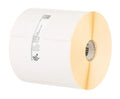 |
Zebra Z-Perform 1000D3013758 | 54.5 × 38.1 mm | Thermal Paper | — | 19 mm | 3,37 €+VATIn stock | |
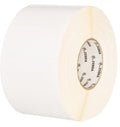 |
Zebra PolyPro 4000D3003347 | 50.8 × 25.4 mm | Synthetic | 340 | 19 mm | 8,54 €+VATIn stock | |
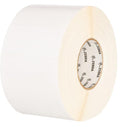 |
Zebra PolyPro 4000D3006404-T | 50.8 × 50.8 mm | Synthetic | 200 | 19 mm | 8,09 €+VATOut of stock | View |
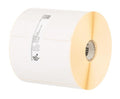 |
Zebra Z-Perform 1000D3012910-T | 50.8 × 25.4 mm | Thermal Paper | 353 | 19 mm | 3,12 €+VATIn stock | |
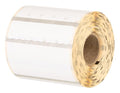 |
Zebra Z-Perform 1000D3007842-T | 50.8 × 25.4 mm | Thermal Paper | 430 | 19 mm | 3,70 €+VATIn stock | |
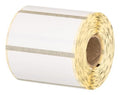 |
Zebra Z-Select 2000D3014816-T | 50.8 × 25.4 mm | Thermal Paper | 446 | 19 mm | 5,78 €+VATOut of stock | View |
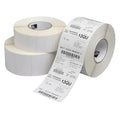 |
Zebra Z-Perform 1000D3008872-T | 38.1 × 38.1 mm | Thermal Paper | 270 | 19 mm | 4,49 €+VATOut of stock | View |
No matching products.
More ZQ610 guides
Related guides
Still stuck?
Contact support
Send us your model and a short description of the problem. Our team will help you find a solution.
